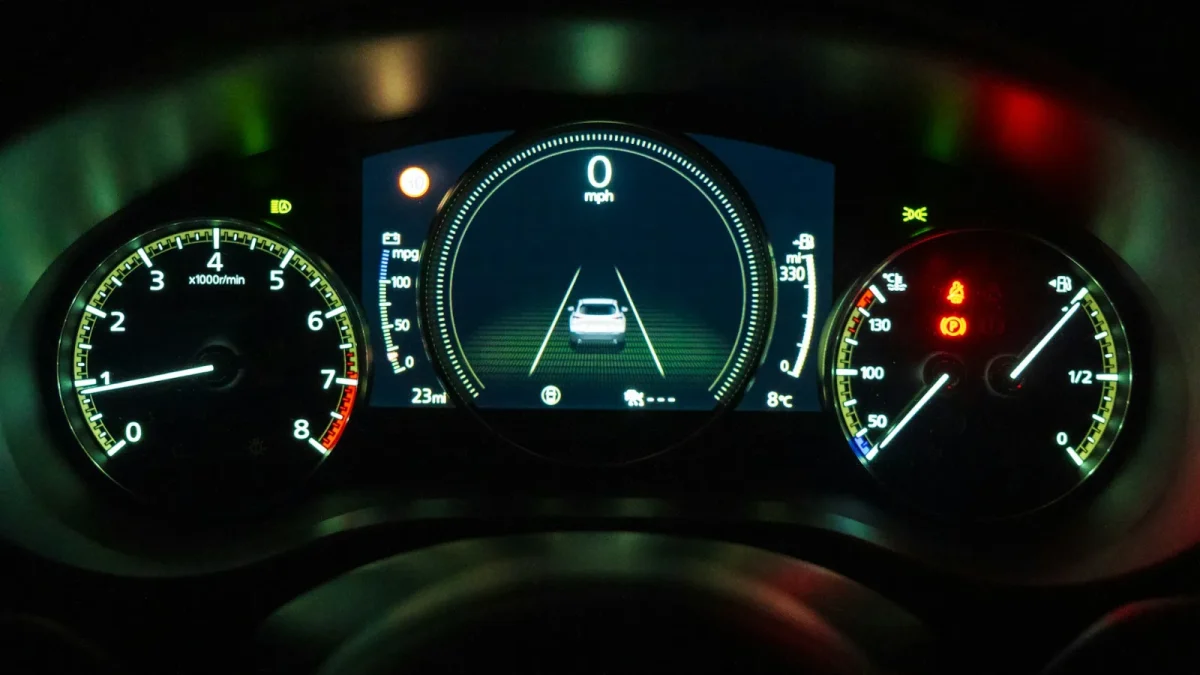
You reach for the lane keep button, the dash flashes something like “Lane Keep Assist Not Available,” and the icon sits there grayed out, refusing to light up green. It is one of the more frustrating messages a driver can get, because the car will not tell you why in plain words. It just quietly opts out.
I have chased this exact complaint across Toyotas, Hondas, Subarus, and a good number of Fords over the years. The honest truth is that the vast majority of these cases resolve in the driveway with no shop visit. The system is not broken. It is missing one of the conditions it needs to switch on.
So instead of guessing, work this checklist in order. It runs from the free two-minute fixes down to the paid ones, which is exactly how you should approach it.
Key takeaways
- A grayed-out or unavailable lane keep assist is usually a missing condition, not a hardware failure.
- Start with the free checks: camera glass, driving speed, and whether the feature is even switched on in the menu.
- Most systems need a companion feature like adaptive cruise or steering assist toggled on first.
- A cold start, a battery disconnect, or a windshield swap can reset the camera and require recalibration.
- If the message survives every free check, a diagnostic scan is your next step, not a parts cannon.
Step 1: Clean the windshield in front of the camera
Everything the system does starts with the forward camera tucked behind your rearview mirror. If that lens cannot see, the feature reports itself unavailable. This is the single most common cause I find, and it costs nothing to rule out.
Wipe the outside of the glass directly in front of the camera housing. Then, and people always skip this, wipe the inside too. A hazy film on the interior glass scatters light and quietly degrades tracking.
- Clean the outer windshield in the camera zone near the mirror.
- Clean the inner glass in that same strip with a lint-free cloth.
- Clear off any bug splatter, road film, or hard-water spots.
- Make sure no dash-mounted phone, toll tag, or sticker blocks the lens.
Tip
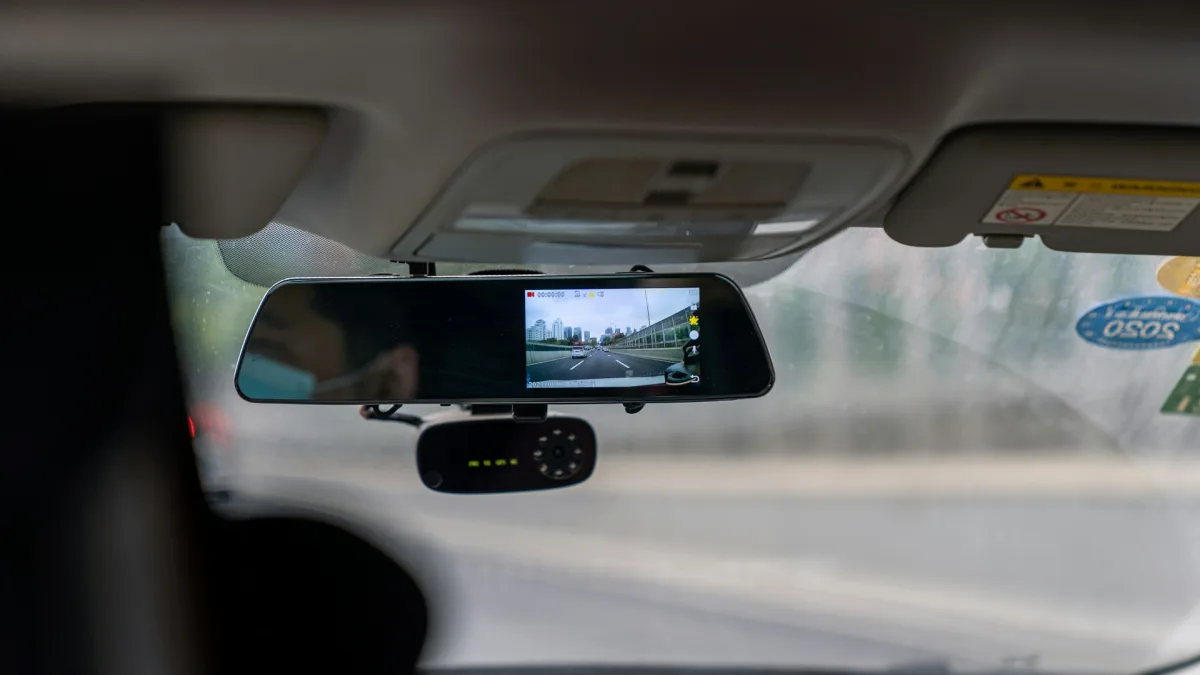
A dash cam or radar detector mounted too close to the ADAS camera can partially block its field of view. I have seen a poorly placed dash cam trigger an unavailable message on a 2020 RAV4. Move it a few inches and test again.
Step 2: Check your speed
Nearly every lane keep system has a minimum activation speed, and it will not engage below it. For a lot of brands that floor sits somewhere around 37 to 45 mph, though it varies by make and model year.
If you are testing this in a parking lot or a slow neighborhood, the feature is behaving correctly by staying off. It simply is not built for crawling speeds where you need full manual control.
Get up to highway speed on a well-marked road and watch whether the icon comes to life. If it does, there was never a fault at all.
Step 3: Confirm the feature is actually switched on
This sounds obvious, but I would guess a third of “not available” calls come down to a setting that got toggled off. Someone bumped a menu, a family member changed it, or a software update reset it to default.
Dig into the driver-assist menu on your infotainment screen or gauge cluster and confirm lane keep assist is enabled. On many cars there is also a physical button on the wheel or dash that has to be pressed each drive cycle.
Good to know
Some systems forget your preference and default to off every time you start the car. That is not a bug on those models. If yours does this, the menu setting and the button press are two separate steps you may both need. Our walkthrough on how to turn off lane keep assist shows exactly where these toggles live, which also tells you where to turn it back on.
Step 4: Turn on the companion features it depends on
Here is a wrinkle that trips up a lot of owners. On many vehicles, lane keep assist will not arm unless a related system is active first. The feature has dependencies.
Toyota’s Lane Trace Assist, for example, generally needs the adaptive cruise control side of the system engaged to do full lane centering. Hyundai and Kia’s Lane Following Assist behaves the same way, riding along with Smart Cruise Control.
- Toyota Lane Trace Assist: turn on Dynamic Radar Cruise Control first.
- Hyundai and Kia Lane Following Assist: activate Smart Cruise Control.
- Subaru EyeSight: confirm the whole EyeSight system is enabled, not just lane centering.
- Honda: check that LKAS is armed and you are above its speed floor.
If you drive a Toyota, our breakdown of Toyota Lane Trace Assist explains this pairing in detail. Hyundai and Kia owners will want our Lane Following Assist guide for the same reason.
Step 5: Rule out road and weather conditions
The camera needs painted lines to steer by. No lines, no lane keep. So a road with worn paint, a fresh-tar work zone, or a snow-covered surface will keep the system offline no matter how healthy the hardware is.
Weather blinds it too. Heavy rain, dense fog, low blinding sun, or slush packed over the camera zone all read as “cannot see the lane.”
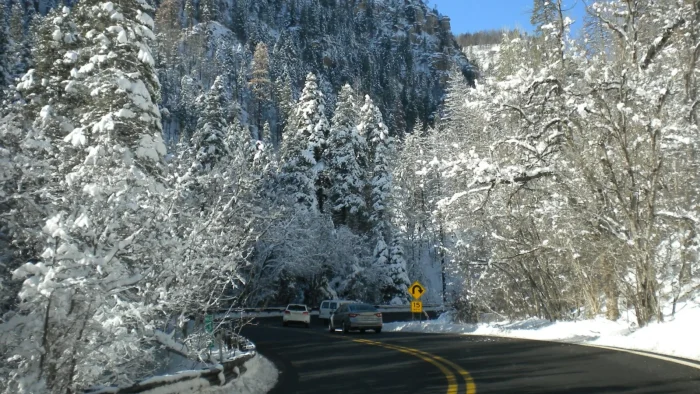
If your unavailable message only shows up in bad weather or on a specific stretch of road, you have found your answer. For the winter version of this story, our guide on lane keep assist not working in snow covers what is normal and what is not.
A grayed-out lane keep icon on a snowy back road is not a check-engine moment. It is the camera being honest about what it can and cannot see.
Step 6: Try a full restart and a fault reset
Electronics get glitchy. If the message appeared out of nowhere with clean glass, good roads, and correct settings, a simple key-cycle sometimes clears it.
Shut the car fully off, open the door so it truly powers down, wait a minute, and restart. If a temporary sensor hiccup caused the message, this often resets it.
Watch out
If the feature went unavailable right after a battery disconnect, a jump start, or new-battery install, the camera module may need to relearn or recalibrate. That is common and usually not a defect, but it can require a proper calibration procedure rather than just a restart.
Step 7: Think about recent service or damage
Now we get to the causes that point toward a shop. Ask yourself what changed right before the message appeared.
A new windshield is the big one. The forward camera is mounted to the glass, and swapping it throws the calibration off. The system reads that and reports itself unavailable until a technician recalibrates it. Our guide on lane keep assist off after a windshield swap walks through this exact scenario.
Front-end body work, a fender bender, a bumper cover R and R, or an alignment can all knock calibration out too. If any of that happened recently, calibration is your prime suspect.
Step 8: Get it scanned
If you have honestly worked every step above and the message will not clear, it is time for a diagnostic scan. A technician can pull the specific fault code and tell you whether the camera needs calibration or an actual part has failed.
Do not let a shop start replacing sensors on a hunch. The code tells the story. Calibration runs a different price than a failed module, and you deserve to know which one you are paying for. Our honest look at camera calibration cost gives you real ranges so a fair quote is easy to spot.
For a broader sense of how these systems are supposed to perform and why they matter, the IIHS overview of advanced driver assistance is a solid, unbiased read.
Putting it all together
Run this list top to bottom the next time your lane keep assist reports itself unavailable, and you will usually land the cause without spending a dime. Clean glass, correct speed, the right settings, good lines, and a fresh restart solve the overwhelming majority of these.
The paid causes, calibration and hardware faults, sit at the bottom for a reason. They are real but rare compared to the everyday stuff. To understand how the whole system behaves and why it makes these calls, circle back to our complete lane keep assist guide, and you will read that gray icon very differently next time.
Questions drivers ask
The most common reasons are a dirty or blocked camera, driving below the minimum activation speed, or the feature being switched off in the menu. Faded lane paint and bad weather also cause it. Start with the free checks before assuming a hardware fault.
Often yes. Cleaning the windshield in front of the camera, confirming the feature is enabled, getting above the speed threshold, and doing a full restart resolve most cases. Calibration and hardware faults are the exceptions that need a shop.
On many vehicles, yes. Systems like Toyota Lane Trace Assist and Hyundai and Kia Lane Following Assist rely on the adaptive cruise side being active before full lane centering will arm. Check whether your companion feature is switched on.
A battery disconnect or jump start can reset the camera module, and it may need to relearn or recalibrate before the feature returns. A full key-cycle sometimes clears it, but some vehicles require a proper calibration procedure at a shop.
If you have cleaned the glass, confirmed correct speed and settings, ruled out road and weather, and restarted the car with no change, get a diagnostic scan. The fault code will tell you whether it needs calibration or a failed part.